Windows Command Line
Task 1 Introduction
Everyone prefers a graphical user interface (GUI) until they master a command-line interface (CLI). There are many reasons for that. One reason is that GUIs are usually intuitive. If someone offers you a GUI interface you are unfamiliar with, you can quickly poke around and discover a non-trivial part. Compare this with dealing with a CLI, i.e., a prompt.
CLI interfaces usually have a learning curve; however, as you master the command line, you will find it faster and more efficient. Consider this trivial example: How many clicks do you need to find your IP address using the graphical desktop? Using the command-line interface, you don’t even need to raise your hands off the keyboard. Let’s say you want to recheck your IP address. You need to issue the same command instead of moving the mouse pointer to every corner of your screen.
There are many other advantages to using a CLI besides speed and efficiency. We will mention a few:
- Lower resource usage: CLIs require fewer system resources than graphics-intensive GUIs. In other words, you can run your CLI system on older hardware or systems with limited memory. If you are using cloud computing, your system will require lower resources, which in turn will lower your bill.
- Automation: While you can automate GUI tasks, creating a batch file or script with the commands you need to repeat is much easier.
- Remote management: CLI makes it very convenient to use SSH to manage a remote system such as a server, router, or an IoT device. This approach works well on slow network speeds and systems with limited resources.
Learning Objectives
The purpose of this room is to teach you how to use MS Windows Command Prompt cmd.exe, the default command-line interpreter in the Windows environment. We will learn how to use the command line to:
- Display basic system information
- Check and troubleshoot network configuration
- Manage files and folders
- Check running processes
Room Prerequisites
Before starting this room, you should have finished the Windows and AD Fundamentals module.
Press the Start Machine button below. Start the AttackBox by pressing the Start AttackBox button at the top of this page. The AttackBox machine will start in Split-Screen view. If it is not visible, use the blue Show Split View button at the top of the page.
You can use the SSH client on the AttackBox to connect to MACHINE_IP with the following credentials:
- Username:
user - Password:
Tryhackme123!
Establishing an SSH Connection from the AttackBox
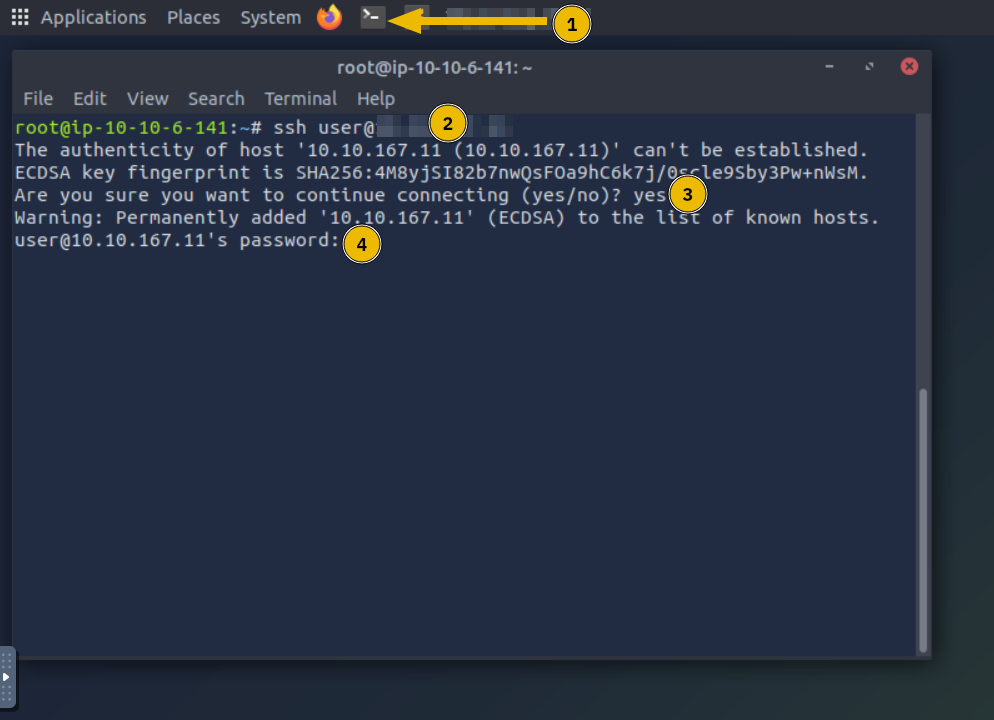
If this is the first time you initiate an SSH connection from the AttackBox to a target system, the steps are shown in the screenshot below, and they are the following:
- Start the AttackBox’s terminal by clicking the terminal icon marked with 1.
- To connect to the target VM, issue the command
ssh user@MACHINE_IPasuseris the username in this case. - Because this is your first time connecting to this target VM, you will be asked to trust this connection. Answer with yes as marked with 3.
- Enter your password
Tryhackme123!. Please note that the password will not appear as you type it.
TODO 未完成